

Status and metrics
The load balancer’s overview in the Cloud Portal shows whether it is serving, the live request rate, error rate, latency, and requests blocked by the firewall. Its Metrics tab breaks these down by location, response code, and firewall rule. Withdatumctl, run datumctl alb describe ALB_NAME for status, hostnames, and certificates:
Metrics
Traffic and latency
Envoy, the proxy that serves your load balancer, records every request it sends to your origin.Firewall
The web application firewall records one event for each request that matches a rule.Status
Example queries
ReplacePROJECT_ID and ALB_NAME. These use MetricsQL, which also accepts standard PromQL.
Requests per second, by location:
4xx and 5xx):
Access logs
To see the requests that reached a load balancer, including the ones the firewall blocked, run the following command: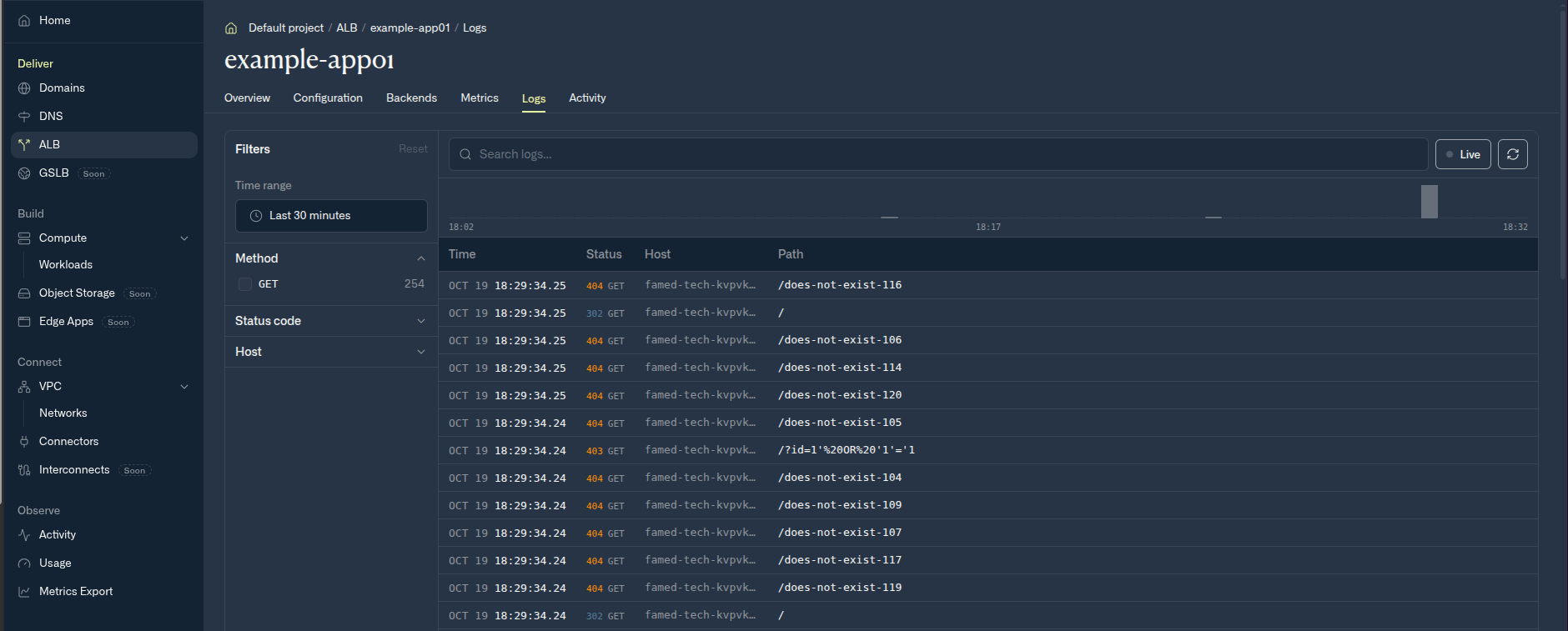
Access logs in the Cloud Portal, including a request the firewall blocked with 403
--code 403narrows the logs to one response code, such as the requests the firewall blocked. Repeat it for several codes.--followkeeps querying for new requests as they arrive.--methodand--hostnarrow the logs to one HTTP method or one hostname.-o wideadds the request ID and the upstream that served the request. An upstream of-means Envoy answered without reaching your origin, as it does when the firewall blocks a request. See An origin that cannot be reached.-o jsonreturns the logs as JSON for scripts.
Query access logs across load balancers
Thetelemetry plugin queries every log line in your project, including load balancer access logs, with a LogQL stream selector. To install it, run datumctl plugin install telemetry. For example, to see every request that any load balancer in the project answered with 403:
authority (the hostname), method, path, response_code, response_flags, duration, upstream_host, user_agent, request_id, and zone_name (the Datum location that served the request). To list every label you can match on, run datumctl telemetry labels.
For a load balancer attached to a Compute workload, datumctl compute logs WORKLOAD_NAME --alb shows the same access logs. See Compute observability.